- Step 1
Add TalkAbtIT from the Chrome Web Store
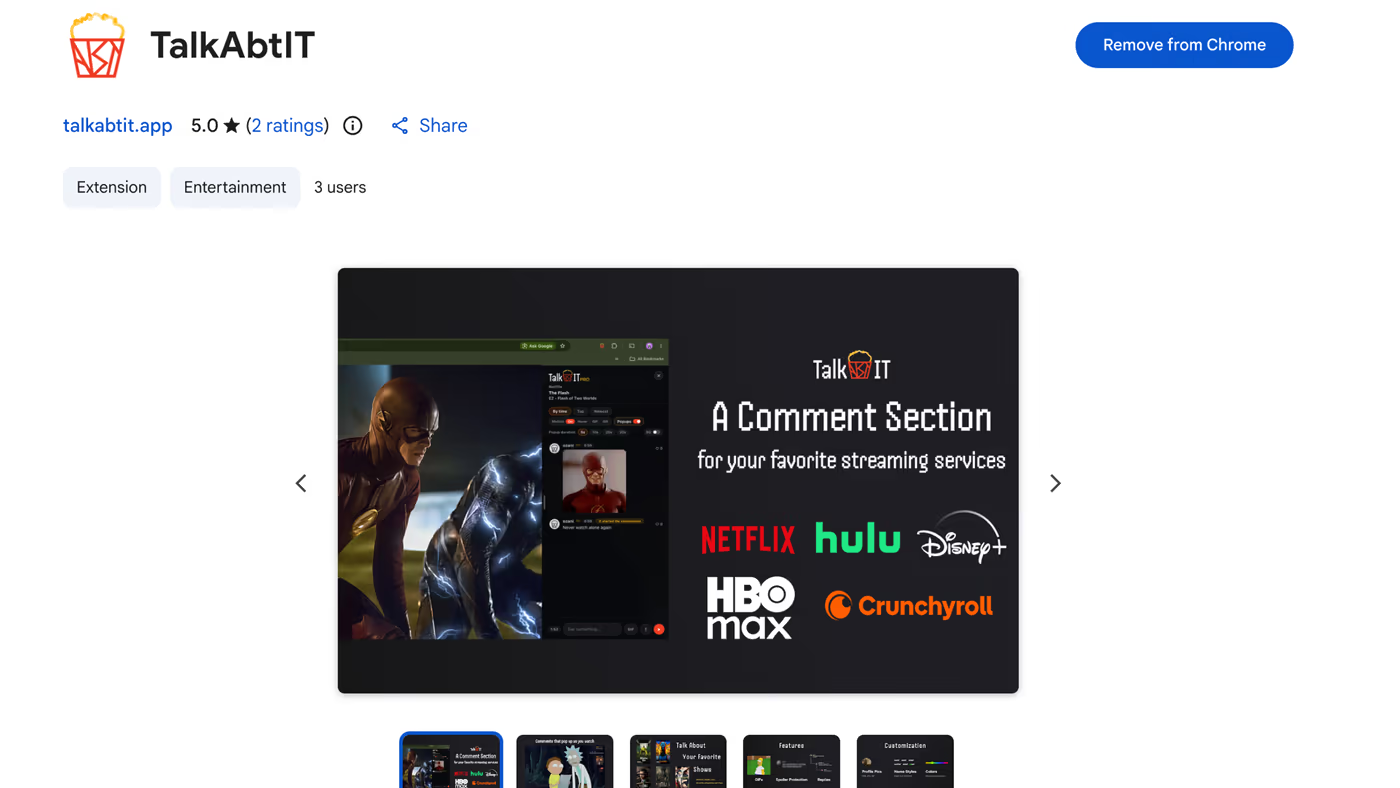
Open the listing in Chrome (or Edge, Brave, or another Chromium browser) on your computer and click Add to Chrome, then Add extension in the confirmation. It's free and there's nothing else to download.
- Step 2
Pin it to your toolbar
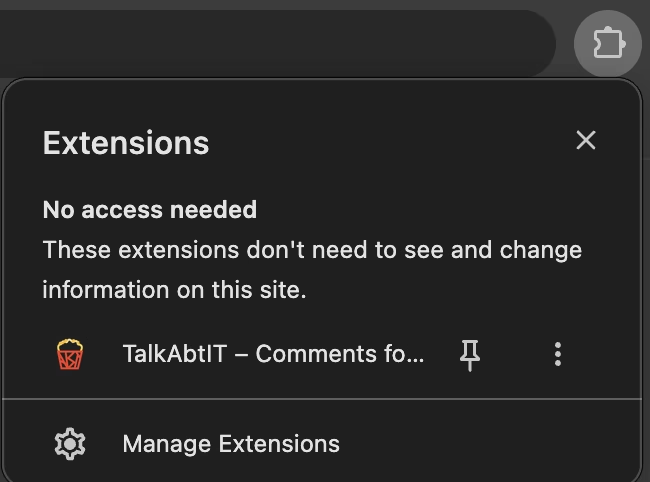
Click the puzzle-piece button at the top right of Chrome, just to the right of the address bar. Find TalkAbtIT in the list and click the pin next to it so the popcorn icon stays in your toolbar.
- Step 3
Click the popcorn icon and sign in
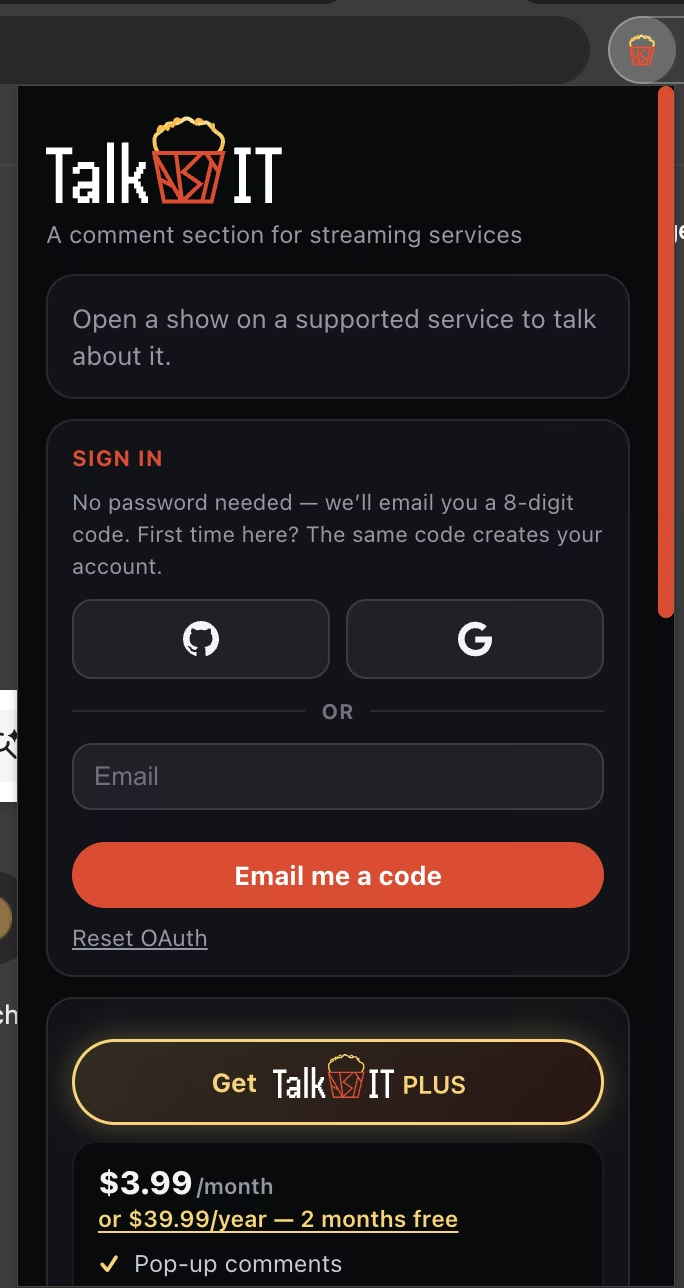
Click the TalkAbtIT popcorn icon in your toolbar and continue with Google or GitHub, or enter your email and we'll send you a code — no password to make up. Then choose a username, the name everyone sees next to your comments.
- Step 4
Open your streaming service
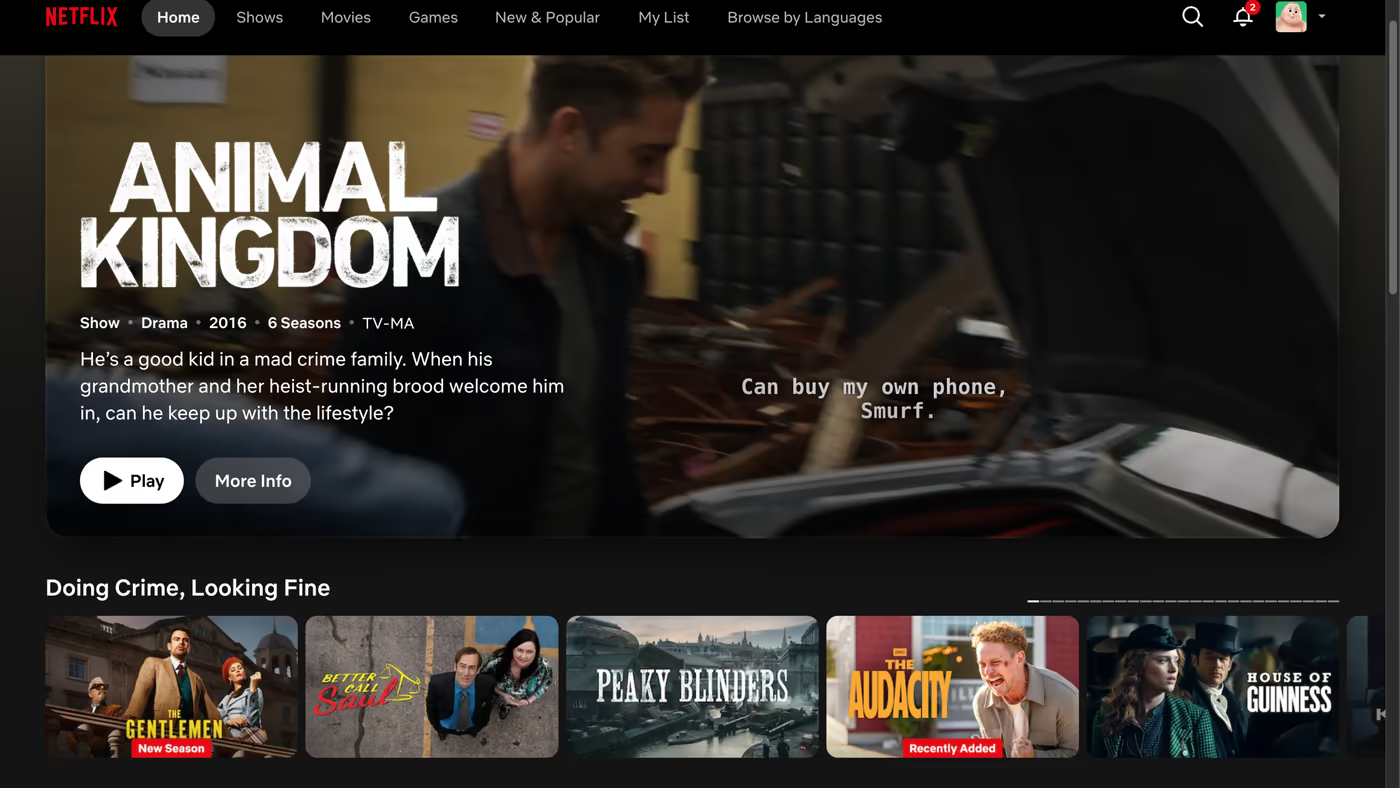
Head to Netflix, Hulu, Disney+, HBO Max, Paramount+, or Crunchyroll and sign in like you always do. TalkAbtIT never asks for your streaming login.
- Step 5
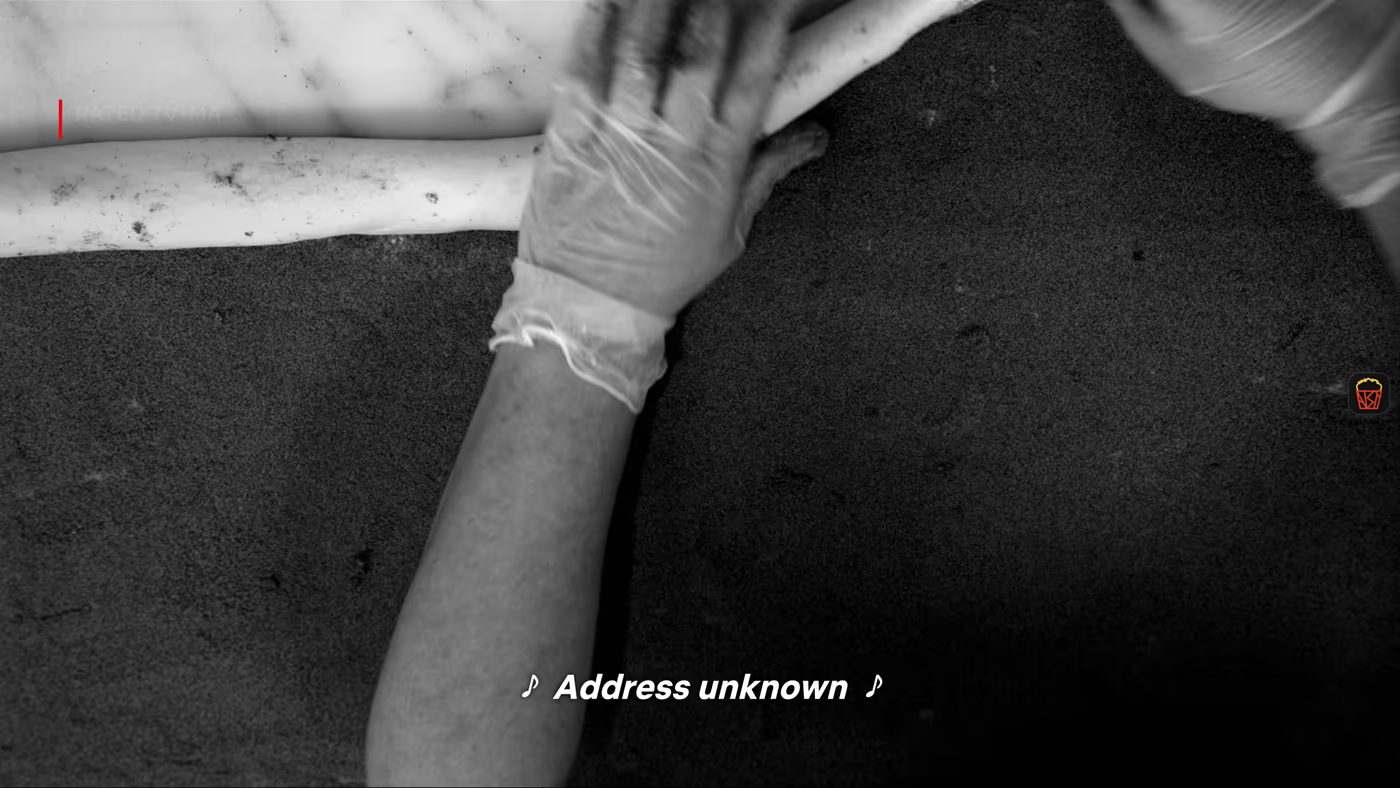
Press play and find the popcorn bucket
Start any show or movie. Hover over the video and the popcorn bucket appears on the right edge of the player, with a count of the comments waiting on that episode.
- Step 6
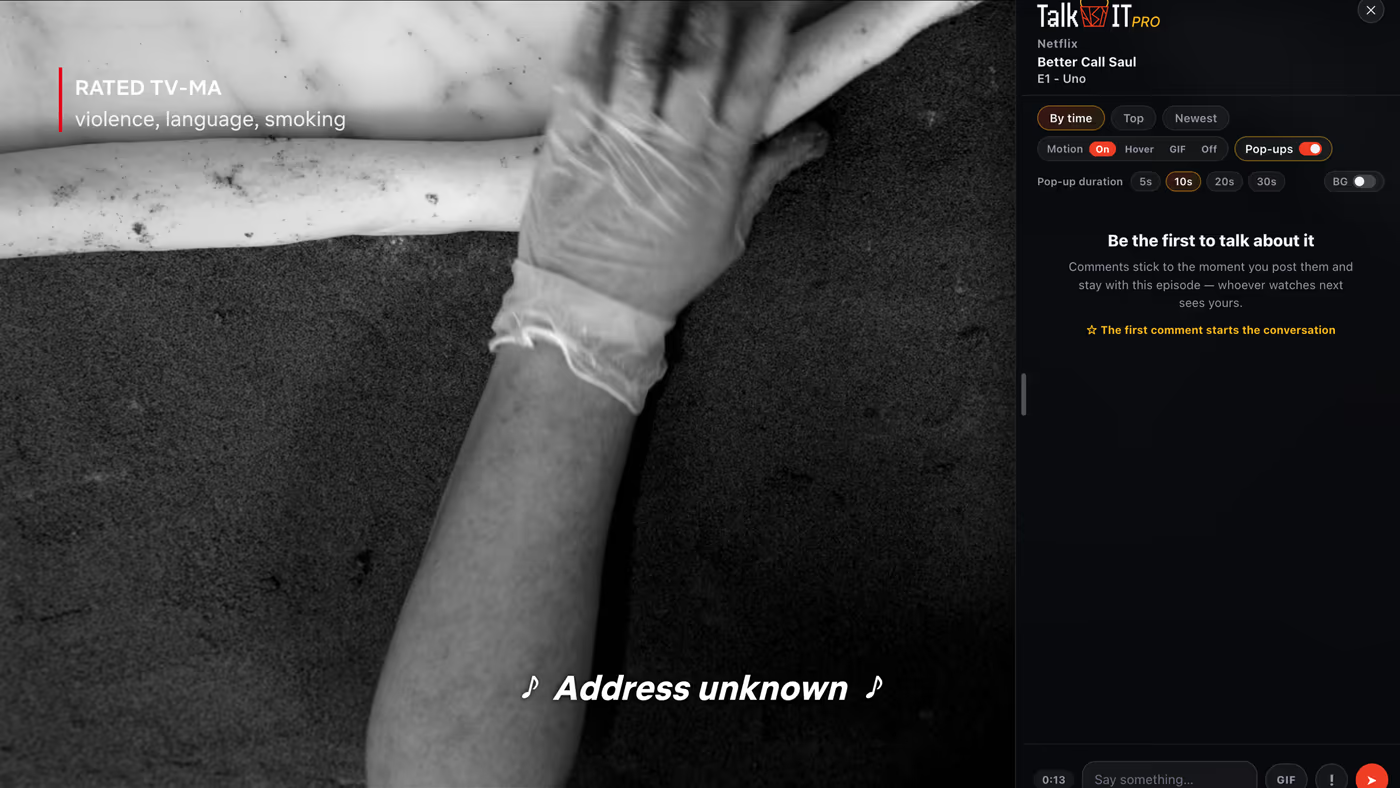
Click the bucket and join in
The comment section slides in beside the video, matched to the exact episode. Comments are pinned to the moment they were written, so read along as they land and drop your own.
That's it
Install troubleshooting
I installed it, but nothing shows up on the video.
Reload the streaming tab — pages that were already open before the install don't pick up the extension until they refresh. Then make sure the video is actually playing and hover over it: the popcorn bucket only appears over the player, not on the browse pages.
Where did the TalkAbtIT icon go?
Chrome tucks new extensions behind the puzzle-piece button at the top right, next to the address bar. Click it, find TalkAbtIT, and hit the pin so the popcorn icon stays in your toolbar — see step 2 above.
Can I install it on my phone or a TV?
Not yet. TalkAbtIT is a Chrome extension, so it runs in the Chrome browser on your computer. On a phone, drop your email into the reminder box on this page and we'll send you the link for when you're on your computer.
Does it work in Edge, Brave, Arc, or Opera?
Yes. They all run Chrome extensions, so the same Chrome Web Store listing installs in each of them. Firefox and Safari aren't supported yet.
Is it really free?
Yes. Reading and posting comments are free and unlimited. An optional Premium upgrade adds cosmetic extras like pop-up comments and a custom name color, but nothing is behind a paywall.
How do I uninstall it?
Right-click the TalkAbtIT icon in your toolbar and choose Remove from Chrome, or manage it from chrome://extensions. To delete your account and data as well, do that from inside the extension first — see the Privacy Policy for what gets removed.
Still stuck?
Email support@talkabtit.app with your browser and the streaming service you're on and we'll sort it out.